
That cannot be done within our interface. If you have enough overlap for our processing there will likely be 10-15 images that would show any given point.
Ações de comentário

Hi - I`ve used MME to survey 18 agricultural fields totaling over 1200 acres and the software and final output maps worked fantastically well!
One question that i have is this - is it possible to be to reference the original images from the final output map. What I mean is, is it possible in some way to take the final processed map and be able to click on one specific area and draw up the original drone imagery of that specific location which was used along with all the other photos to make the final map?
Does that make sense!? I know that I have to upload all the reference images to start off with before processing, but finding the specific ones that make up each part of the final processed map/image would be great - is this something that can be done?
Thanks
Gary
Por favor, entrar para comentar.
That cannot be done within our interface. If you have enough overlap for our processing there will likely be 10-15 images that would show any given point.

Gary, I do something similar to what I think you want using Picasa, a free download from Google - not quite what to want but perhaps this may help.
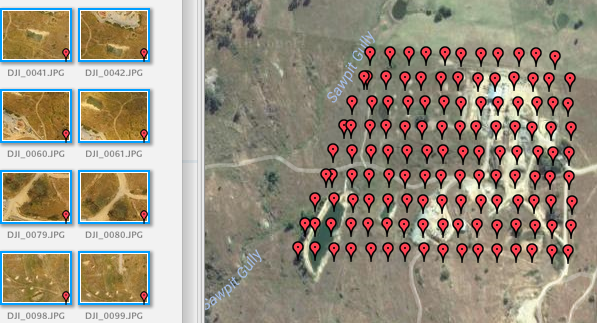
Let's say you have 50 photos which make up your image. Then once you have indexed these in Picasa Picasa you can make use of the Places panel to show the locations of these images on a Google satellite image.
You can then pan and zoom around the Google map and if you click on one of the markers which show where the photos are located you can bring up that photo in the main panel.
You can also move through the photos in the main panel (click one then move through the others using the arrow keys) and the location of each successive photo will be shown on the satellite image.
To bring up the Places panel you click on the red marker symbol at bottom right. To double the size of the Places panel (you can't make it full screen) you click the double chevron icon << at the top left of the Places panel.

You toggle between map and satellite view via the selector in the top right corner of the Places panel.
You can replace the Places panel with an information screen by clicking the information icon (bottom right). This will display all EXIF information for a photo including photo settings, location etc.

The Picasa interface is a bit clunky and will remain so as Google has discontinued its upgrade and maintenance program but it is nonetheless very useful.
The screen capture below shows a portion of the Pcasa screen with all photos from a particular mission selected.
Hope this helps.
Great input, Ian. Thank you for sharing that.


