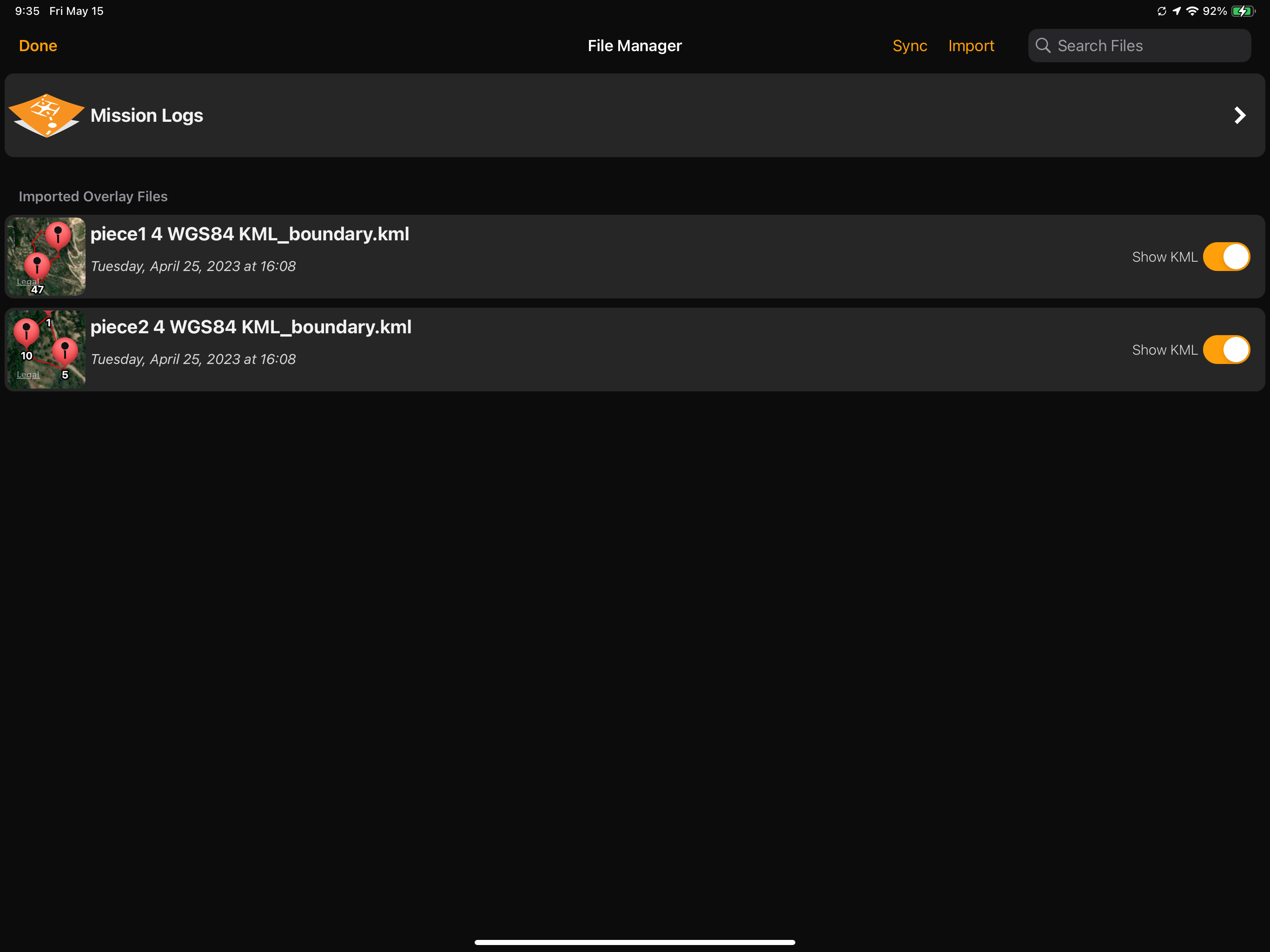
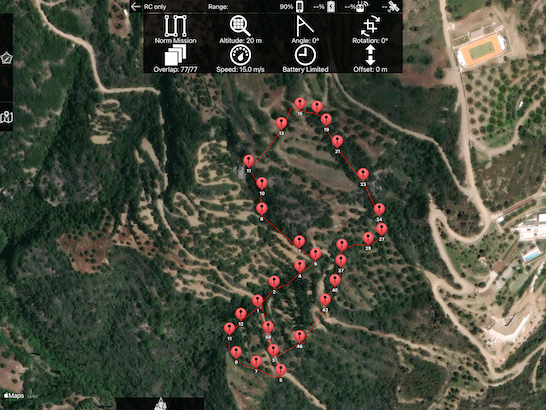
I have a 5-acre block of land I am trying to create an accurate map of. Because the location is obscure, the quality of the Google Earth satellite basemap in this area is not very good and it is very difficult to place the mission points (orange dots) accurately. I have a survey of the land and have successfully uploaded into Map Pilot Pro on my device 2 KML files which defined the surveyed boundaries. I am able to see these boundaries now when I create a new mission.
My question is, does MME or MPP have a feature where it can automatically create a mission plan based on the points in the imported KML file? I have read about Boundaries and Boundary Groups, and also imported the KML files with "_boundary" appended to their names into MPP on my device - they appear as "Imported overlay Files".
But I get stuck at this point - not sure whether the next step is done on my desktop with MME or on my device with MPP? When I try and define a new Boundary on MME, I am not seeing any method to use an imported KML file. I also don't see any references to Boundaries in MPP in "New Mission"
I've attached a few screenshots from MPP showing the successfully imported KMLs in File Manager, and also how they appear as a guide overlay in New Mission.
Is it possible for the Mission Plan to get created automatically, with the orange boundary definition points created with some kind of offset from the points in the KML (eg say 10m). That way I would get a mapping area that is exactly the area of the survey, plus some degree of offset to include a small amount of the surrounding area.